Home / Blog / Image Translation / Video Translation / Support / Donation / RSS
Use a Self-Hosted ImageTrans Server with a Self-Signed Certificate on iOS
In a previous post, I explained how to use the Orion Browser on an iPhone together with an ImageTrans server and the ImageTrans browser extension to translate images on web pages.
This post covers the actual setup. Here is what you need to do.
On your computer:
-
In ImageTrans, go to Preferences - Server and generate a self-signed certificate. Make sure to fill in the correct LAN address of your computer.
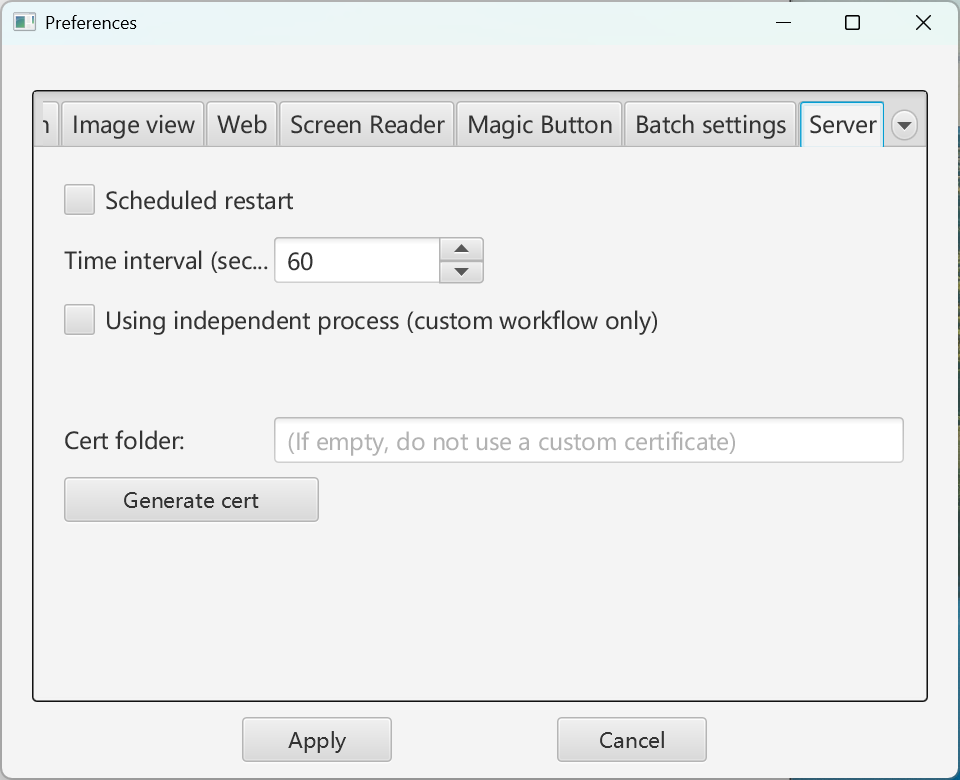
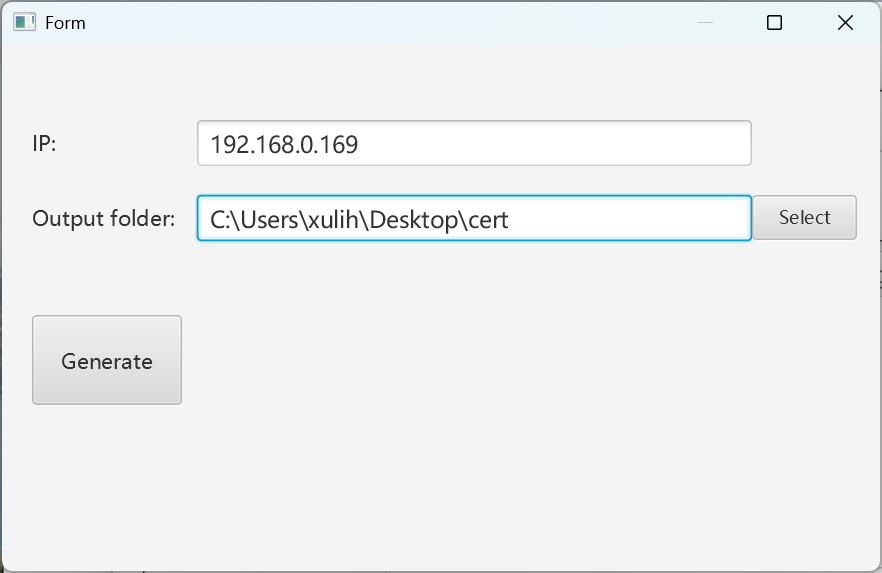
-
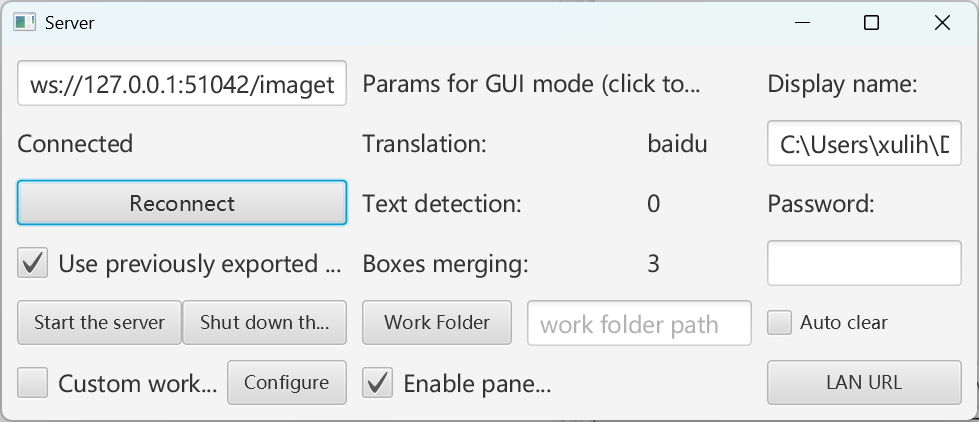
Start the local server from the Server menu.
-
Click the LAN link in the server window to show a QR code, then scan it with your phone to open the server. If the IP is wrong, find the correct LAN IP yourself and enter the address manually, for example https://192.168.0.169:51043.

On your phone:
-
Once the page is open, find the line that says
Install self-signed certand click it to download the certificate.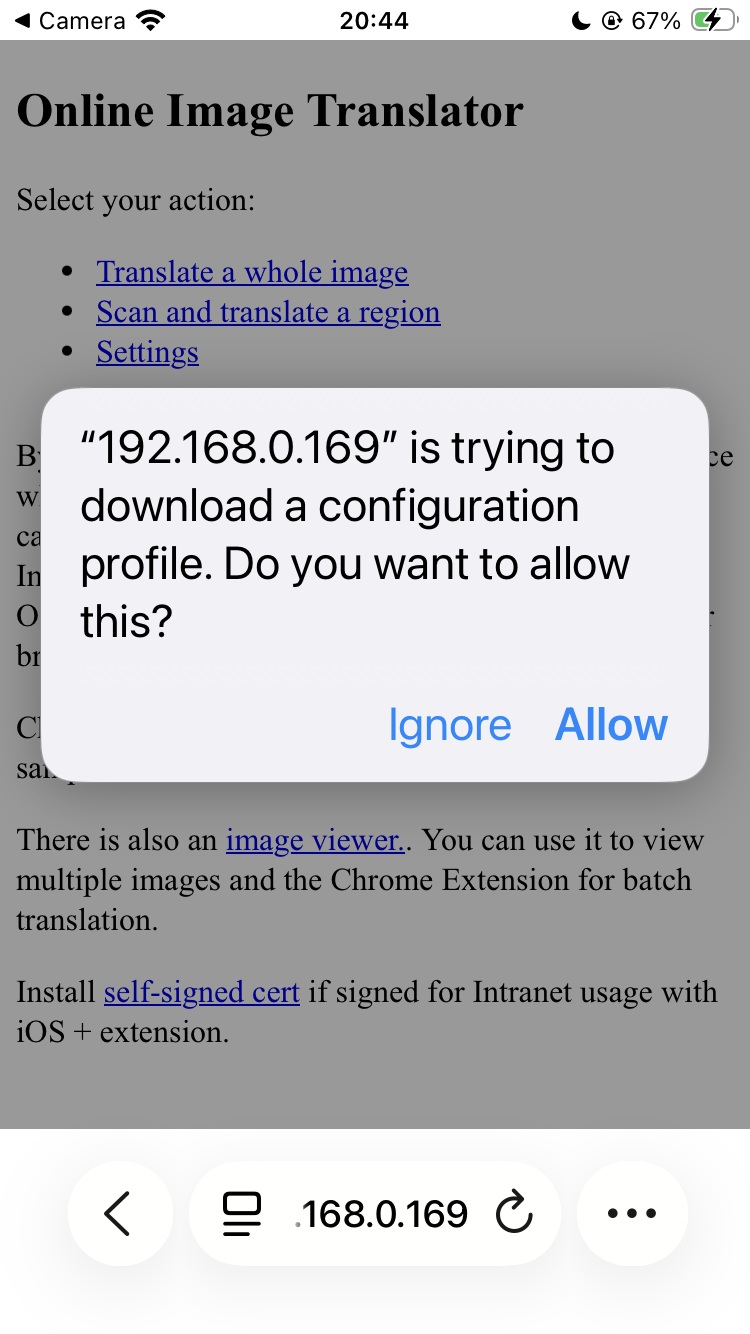
-
Open Settings. You will see a “Profile Downloaded” option. Open it and install the downloaded certificate.
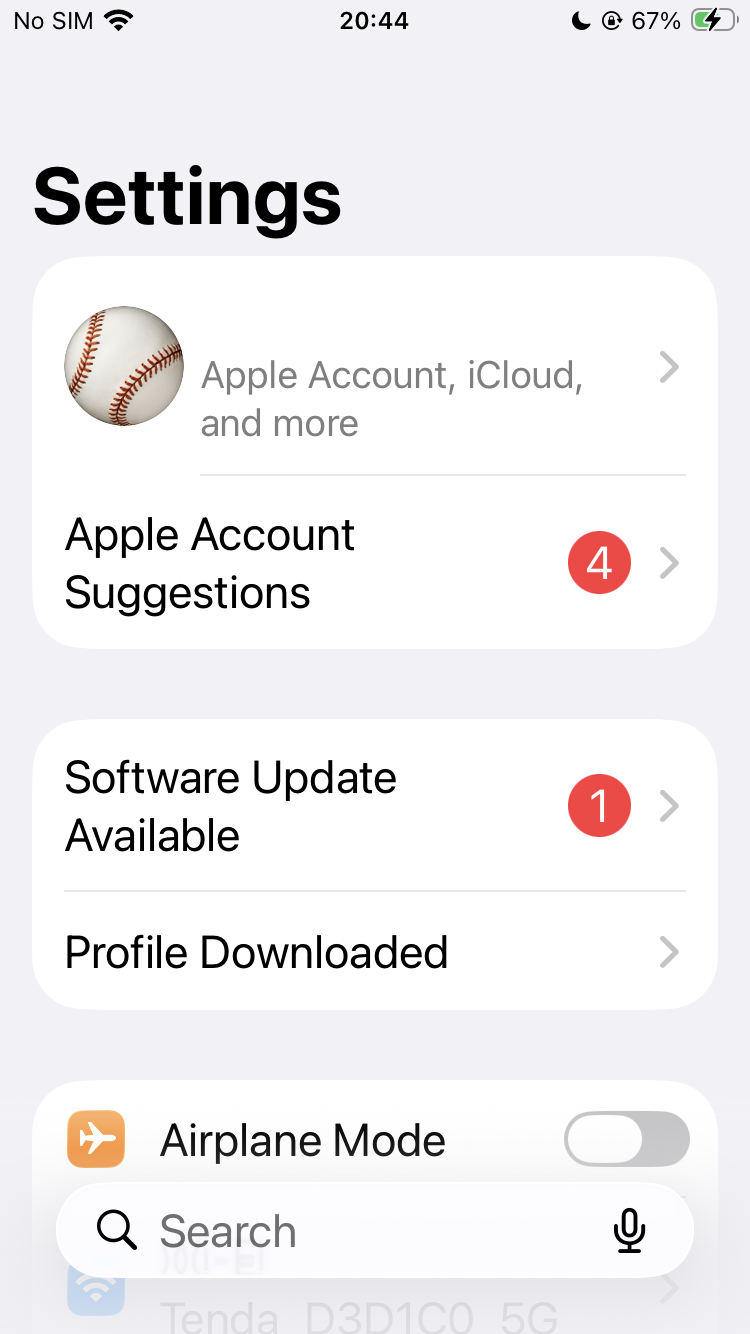
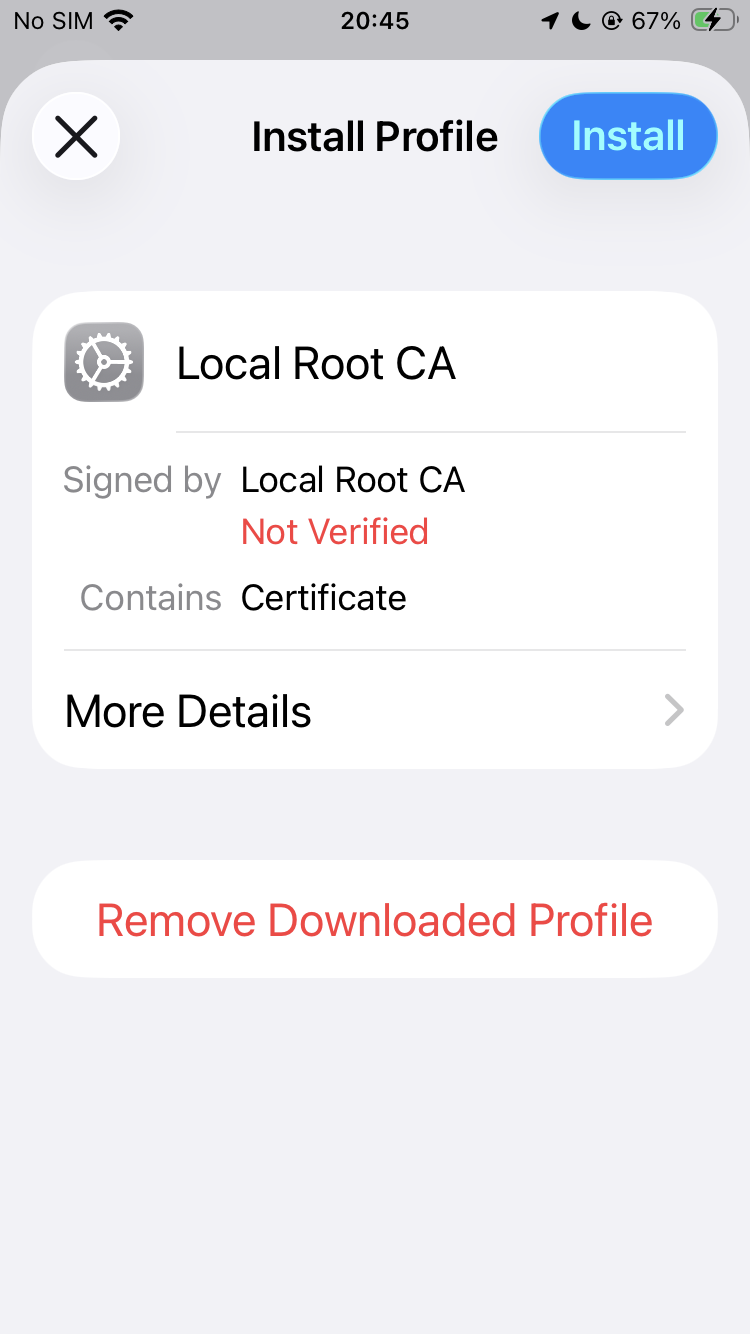
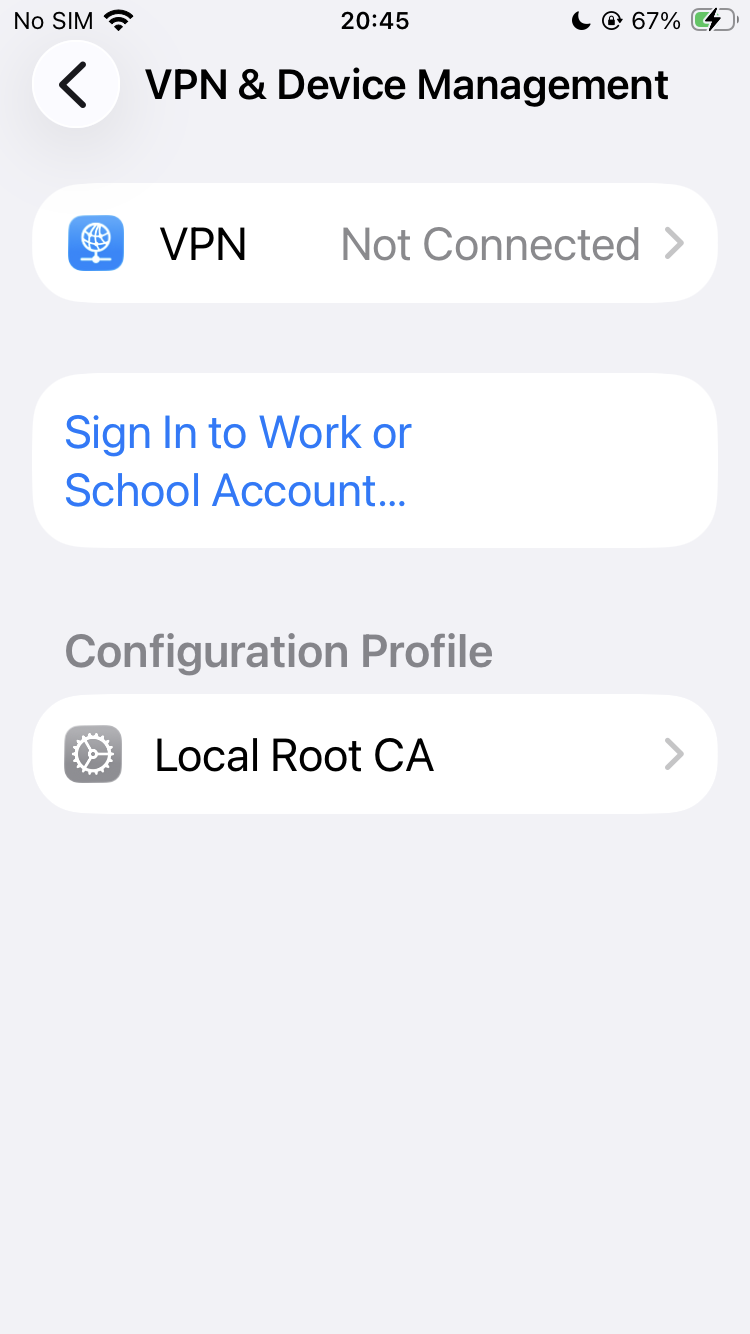
After that, the installed certificate will appear under VPN & Device Management.
-
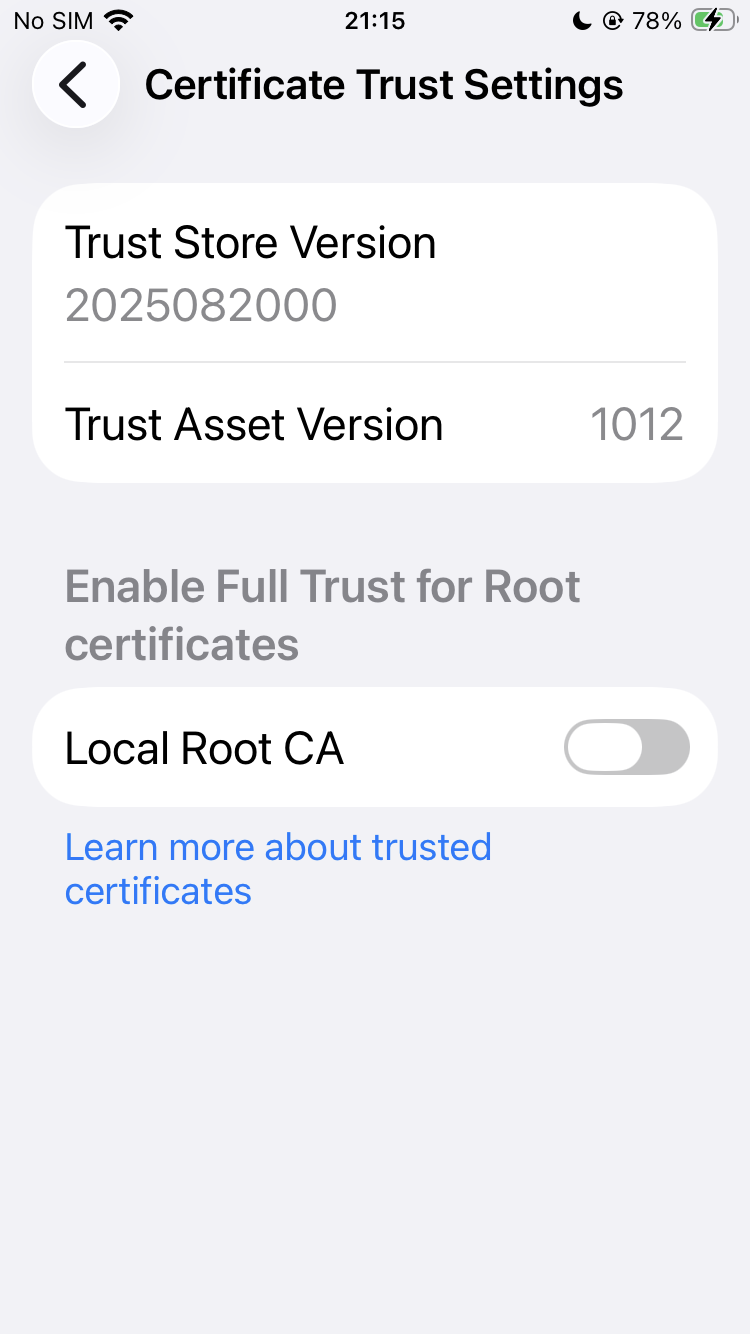
Next, go to Settings - General - About - Certificate Trust Settings and turn on trust for this certificate.
-
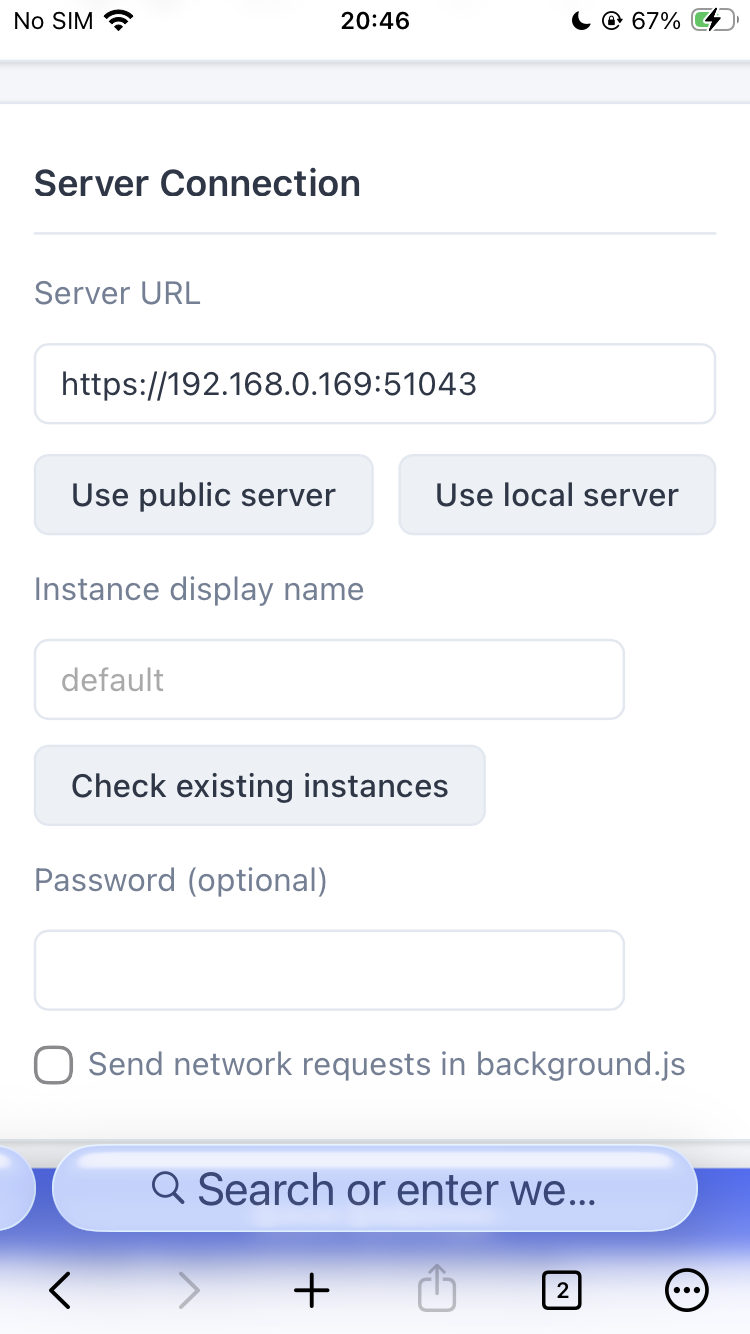
Open Orion Browser, go to the ImageTrans extension settings, and set the server address to the LAN IP address of your computer, for example https://192.168.0.169:51043. Replace 192.168.0.169 with your own IP. It is usually the address shown in the server’s QR code; if it is wrong, find the correct IP yourself.
-
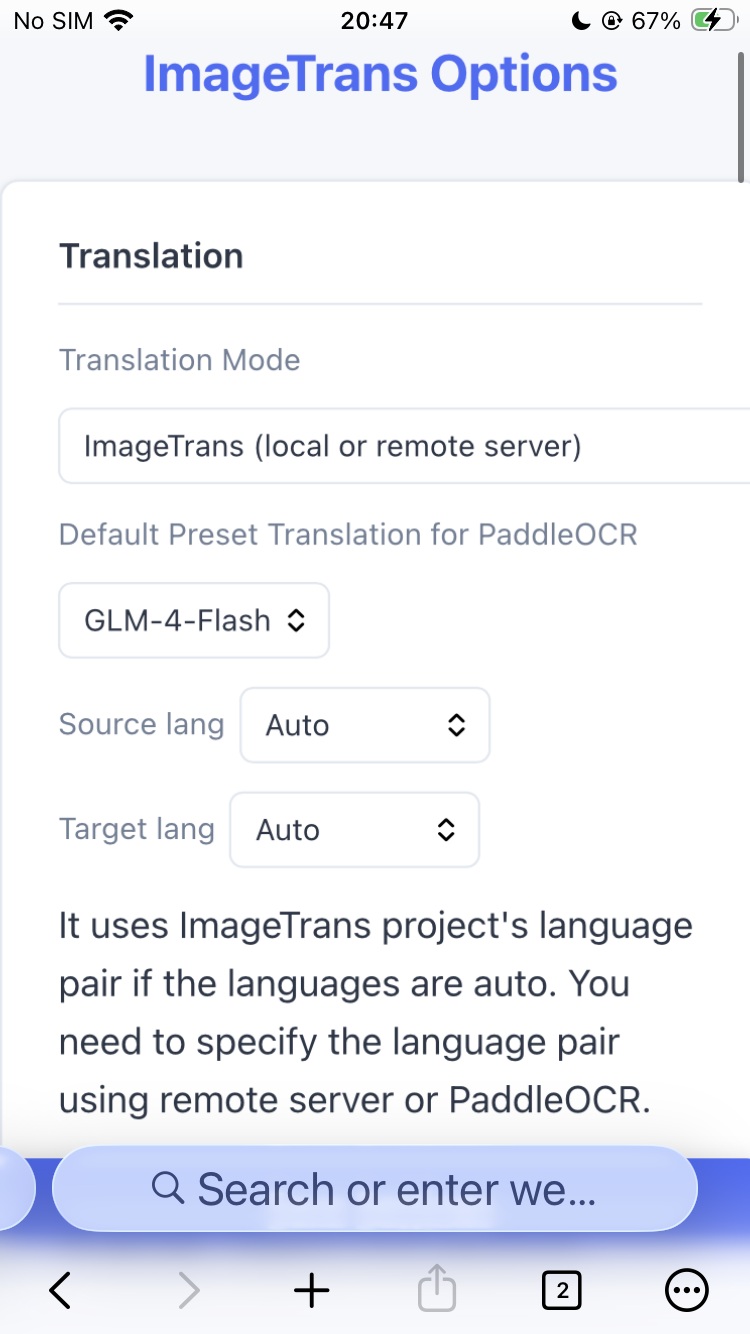
Choose ImageTrans as the translation method, and you can start translating.
External Network Sharing
You can use the intranet penetration service provided by ngrok to perform translation on your home computer when you are outside. Since ngrok provides an HTTPS certificate, the certificate installation steps above can also be skipped.
© 2026 BasicCAT ― Powered by Jekyll and Textlog theme