Home / Blog / Image Translation / Video Translation / Support / Donation / RSS
Turn Scanned Documents into Searchable PDFs with a Text Layer
Scanned documents are usually single-layer, pure-image PDFs whose text cannot be selected, copied or searched. In this case, we can create a two-layer PDF, by putting a hidden text layer over the images, so that when the PDF is opened in a PDF viewer, the text inside it can be searched and copied.
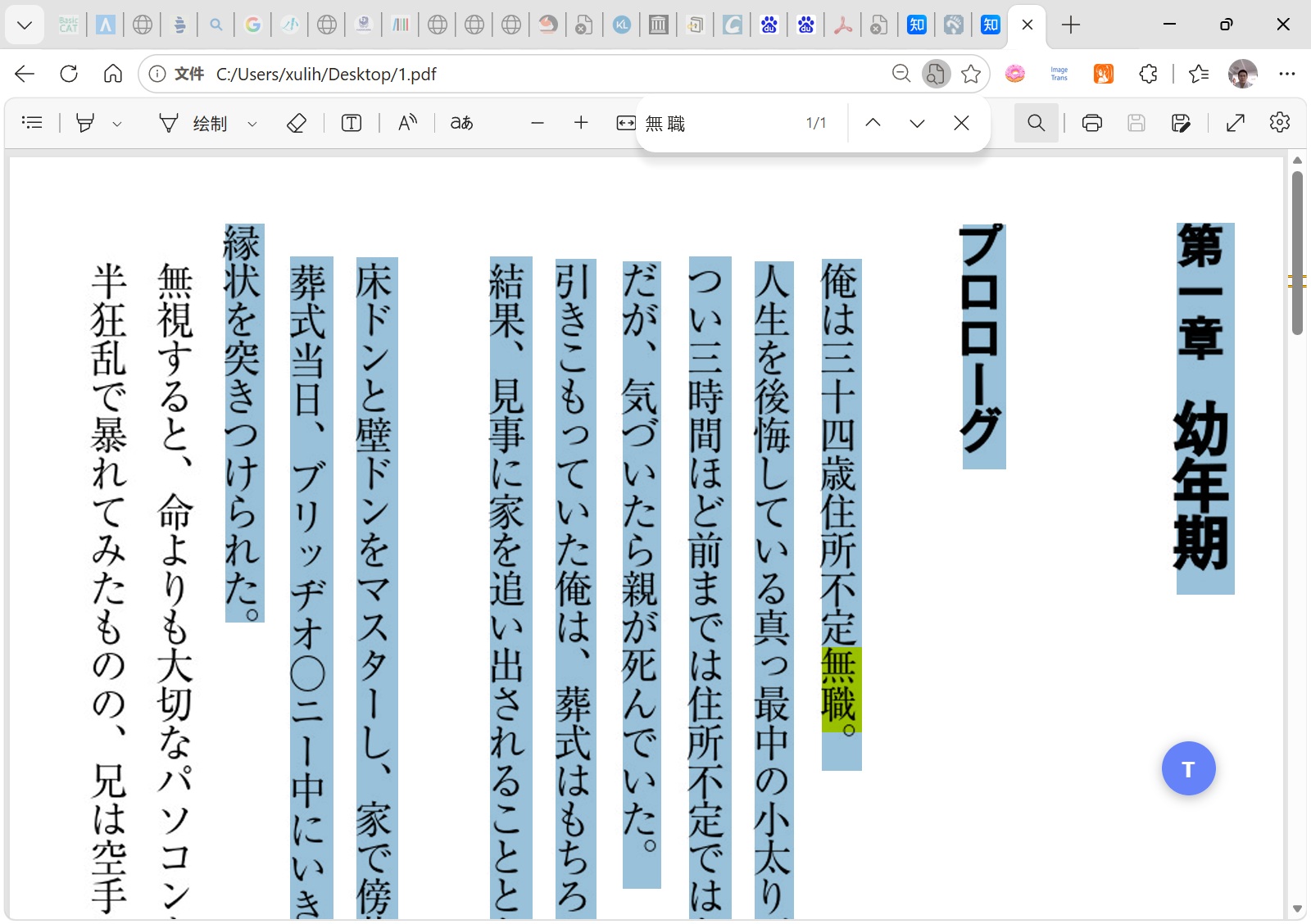
For example, the PDF below shows a part of the Japanese light novel Mushoku Tensei (source). The text inside is vertical, read from right to left, and has already been extracted and turned into a two-layer PDF.
Let me explain how this is done step by step. We need ImageTrans, an OCR software.
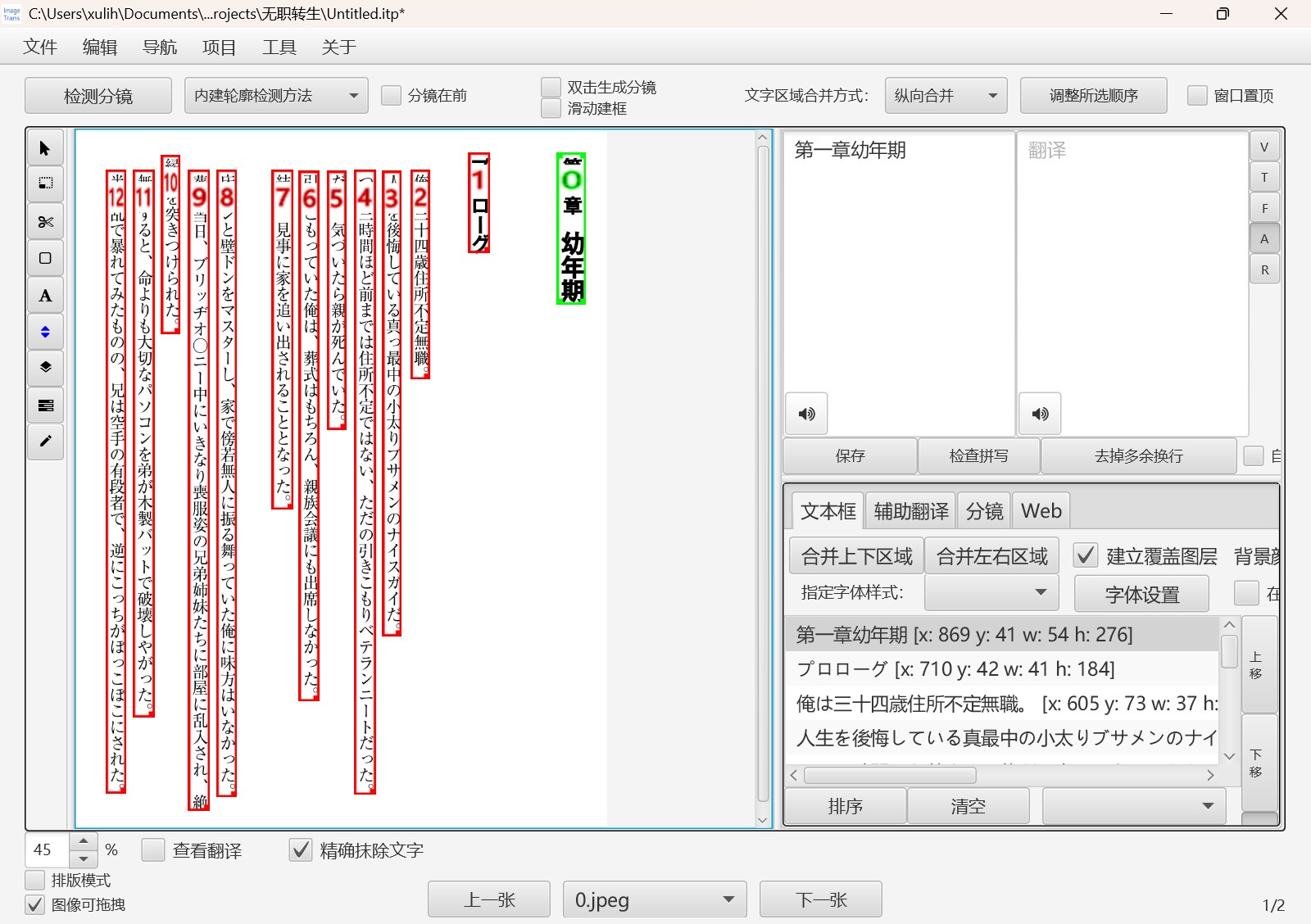
- Open ImageTrans, create a new project, and import the PDF or images.
- Choose an OCR engine, such as PaddleOCR (named rapid in ImageTrans), to recognize the text. If the recognition result is not accurate, we can first use PaddleOCR or other methods to locate the text, and then use large models such as PaddleOCR-VL and minerU, or a dedicated vertical-up Japanese model such as mit48px ctc, to recognize the text.
- Sort the recognized text according to the reading order. Here we just need to enable right-to-left reading mode and sort by the X coordinate in the project settings. If the layout is complex, e.g., with multiple columns, we can run document layout analysis with software like minerU and PPDocLayout before sorting.
- Detect which text is horizontal and which text is vertical. We need to define two font styles in the project settings, one for horizontal text and one for vertical text. Then run the “Detect text direction and apply the corresponding style” workflow in the custom workflow.
- In the menu bar, click Export -> Raster PDF. Use the original images, add a text layer with the source text, and choose a font that contains Japanese characters, such as
C:\Windows\Fonts\arial unicode ms.ttfon Windows, a font that covers nearly all languages.
After saving, we get a PDF like the one above. The software will automatically work out an appropriate font size so that the text in the text layer fits the text in the images as well as possible.
Open it in Edge, and the text can be correctly selected, copied and searched.
The ImageTrans interface:
ImageTrans can also further translate the images, giving us the following Chinese searchable two-layer PDF.
About Adding a Vertical Text Layer
PDF’s native support for vertical text is weak. When creating the text layer, we need to add characters one by one in reading order. I have tried it, and common PDF viewers can all display vertical text added in this way.
© 2026 BasicCAT ― Powered by Jekyll and Textlog theme