Home / Blog / Image Translation / Video Translation / Support / Donation / RSS
PDF Paper Translation and Conversion to Markdown
In academic work, we may encounter PDFs in foreign languages. English might be manageable, but reading in your native language is always more efficient. Other less common languages, such as French or Japanese, may be completely unreadable. In these cases, we need to translate them. You can overlay the translation on top of the original PDF text, or convert it directly to formats like Markdown for convenient reading even on small phone screens.
Translating PDF papers involves some special considerations:
- PDF papers have complex layouts, including multi-column layouts, formulas, tables, images, footnotes, and other elements. Layout analysis is needed to determine the position and reading order of these elements.
- Text in PDFs can generally be extracted directly without additional OCR. However, the extracted text information may have issues such as missing characters or encoding errors (garbled text), in which case OCR is still necessary.
- There is a lot of text that does not need to be extracted and translated (non-translatable elements), which needs to be filtered out.
This article will use ImageTrans, an image OCR and translation software, to translate the following PDF.
Can Visual Language Models Translate Onomatopoeia in Manga?: PDF Link
Steps
-
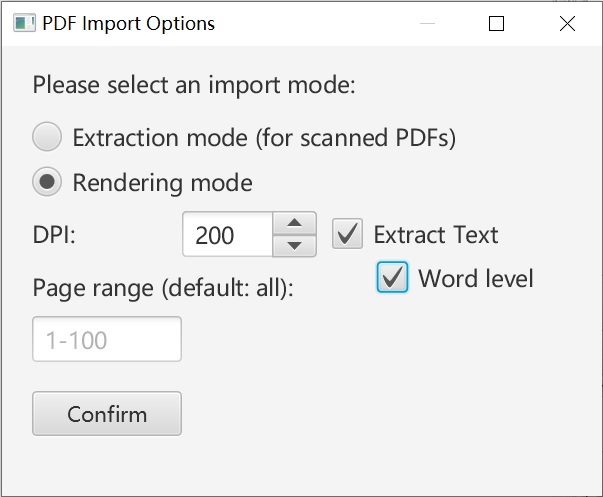
Create a new project based on the “Document” template and import the PDF. ImageTrans will convert the PDF to images for processing. There are some parameters to configure. For scanned PDFs, you can choose the image extraction mode, which is very fast. For PDFs with selectable text, use the default rendering mode, enable text extraction, and extract at the word level.
-
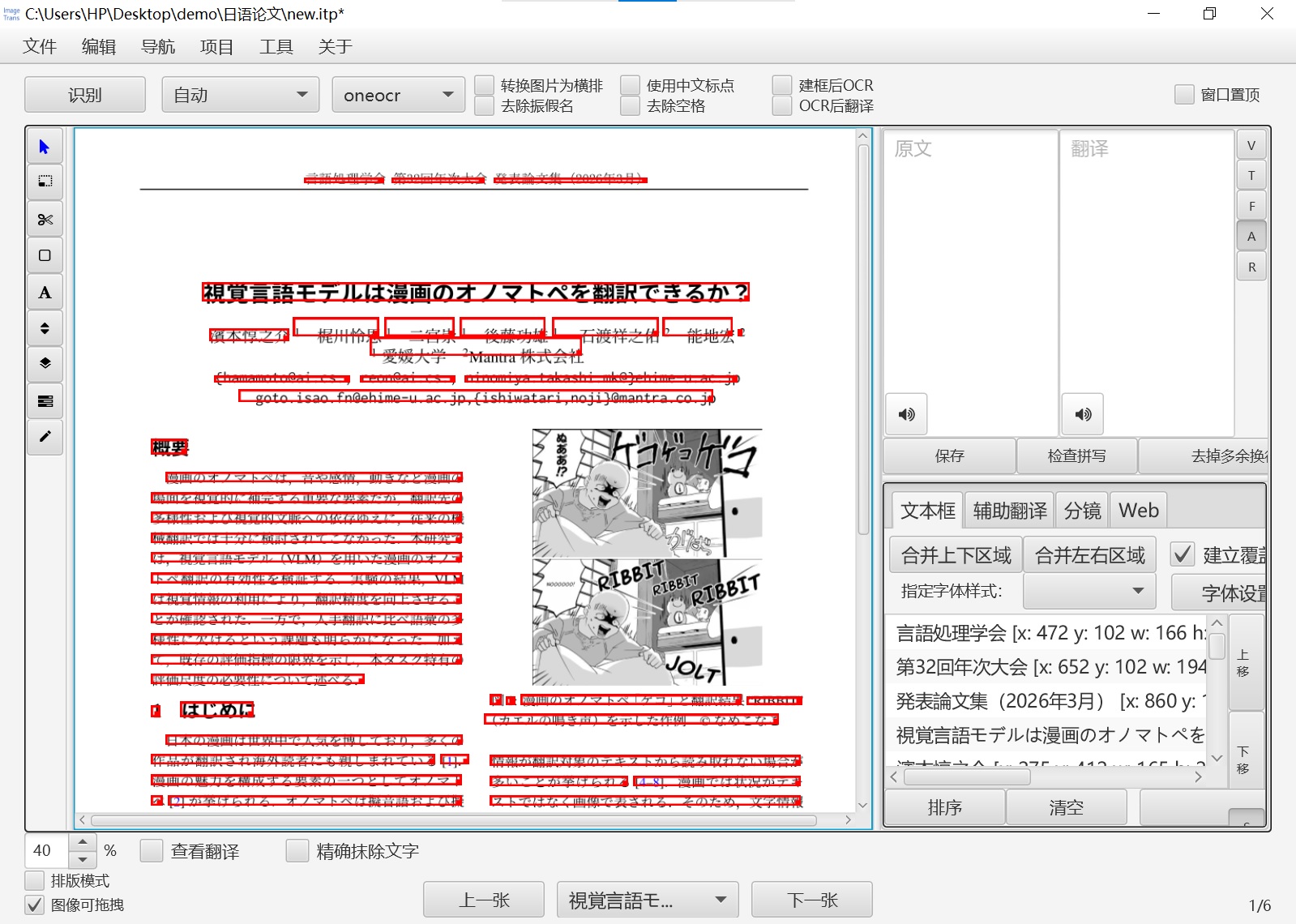
If the built-in text information from the PDF is not extracted well or if the PDF has no embedded text, you can choose an OCR engine for recognition. For example, for Japanese, you can use rapid or oneocr. You can go to Menu - Edit - Detect text areas and recognize text to check the recognition result on a single image.
The text extraction from this example PDF works well.
-
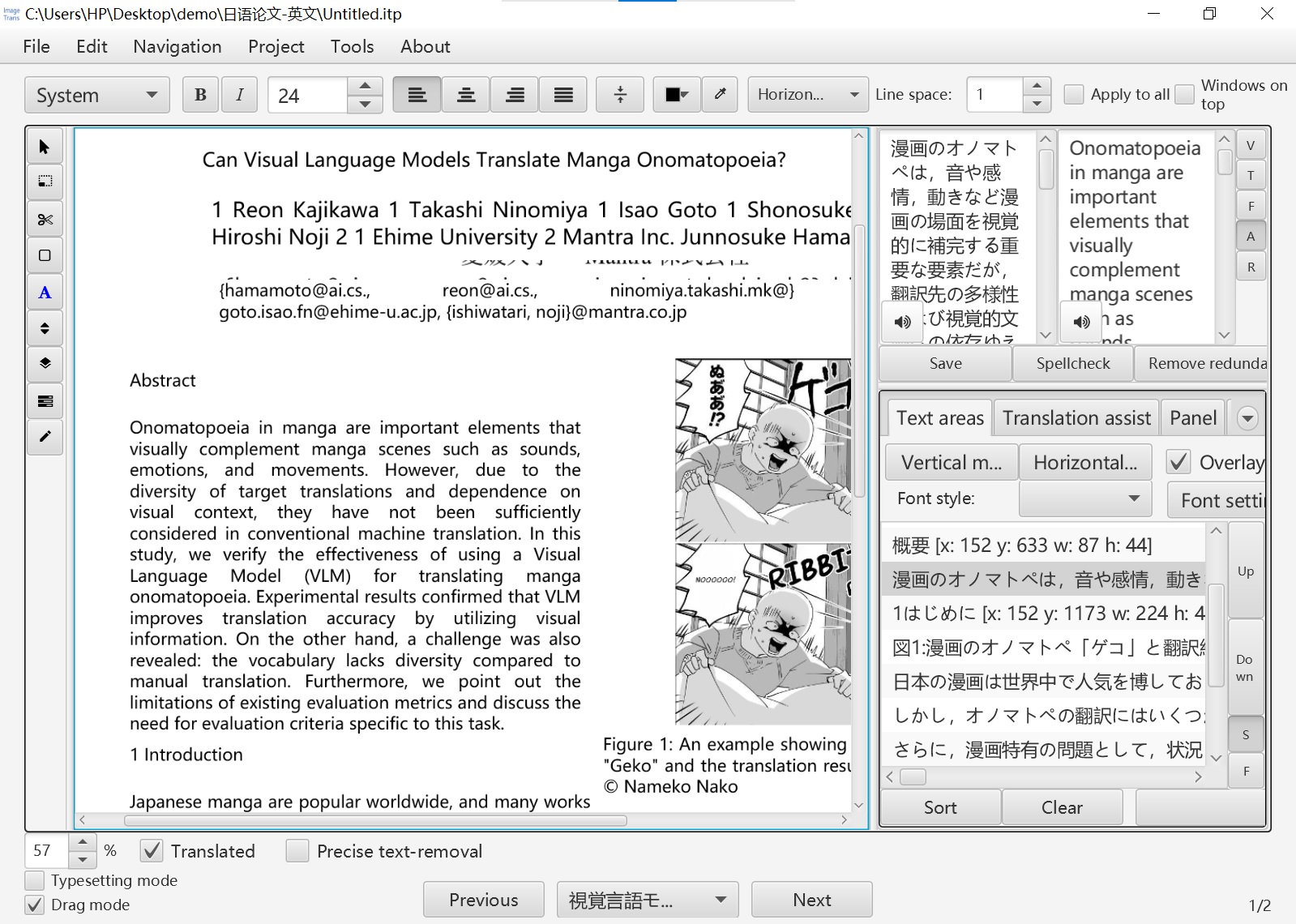
Go to Menu - Project - Batch - Custom workflow to open the workflow settings. Some configuration specific to this PDF is needed. For example, this PDF does not need text detection, areas outside panels should be removed, and the panel detection engine should be set to Deepseek-OCR, which performs better. Here, “panels” refer to various layout components such as paragraphs, figures, and so on.
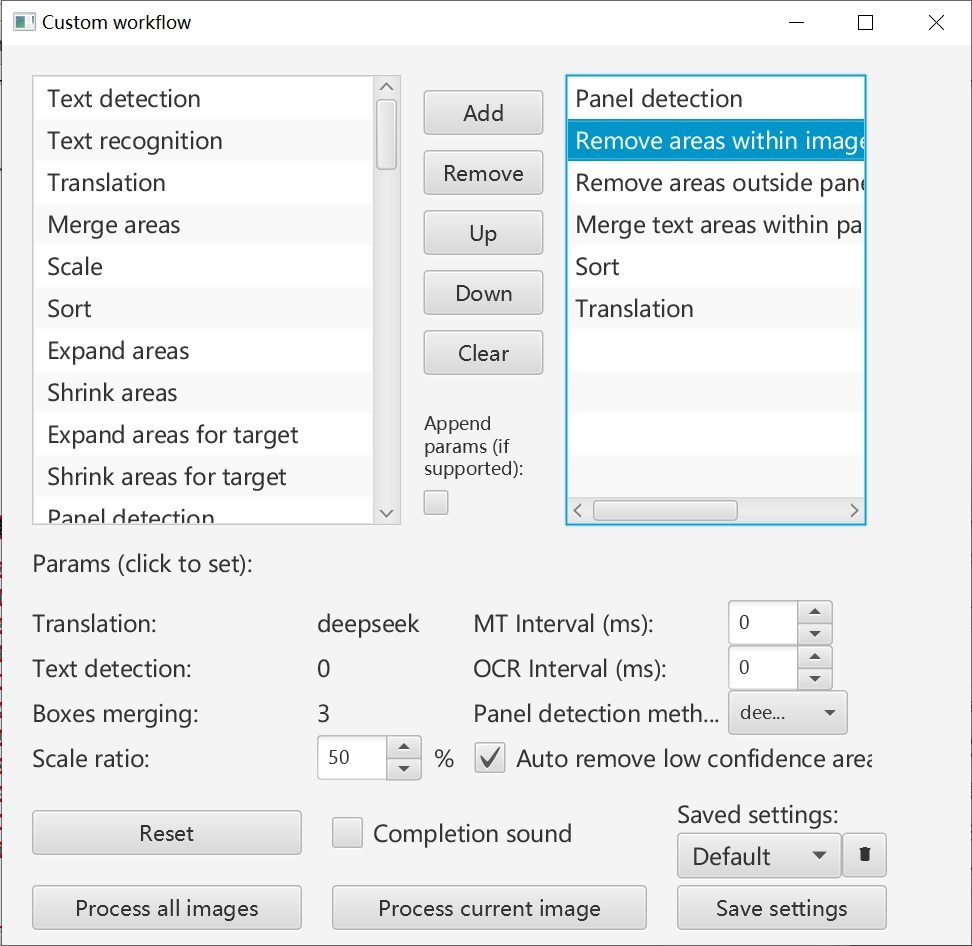
Explanation of each operation:
- Panel detection: Uses the configured Deepseek-OCR for layout analysis
- Remove areas within image and table panels: Text in figures and tables does not need translation and can be removed directly. Figures and tables will be saved as images when exported to Markdown.
- Remove areas outside panels: Removes text such as page footers, as they are not detected as page layout components by Deepseek-OCR
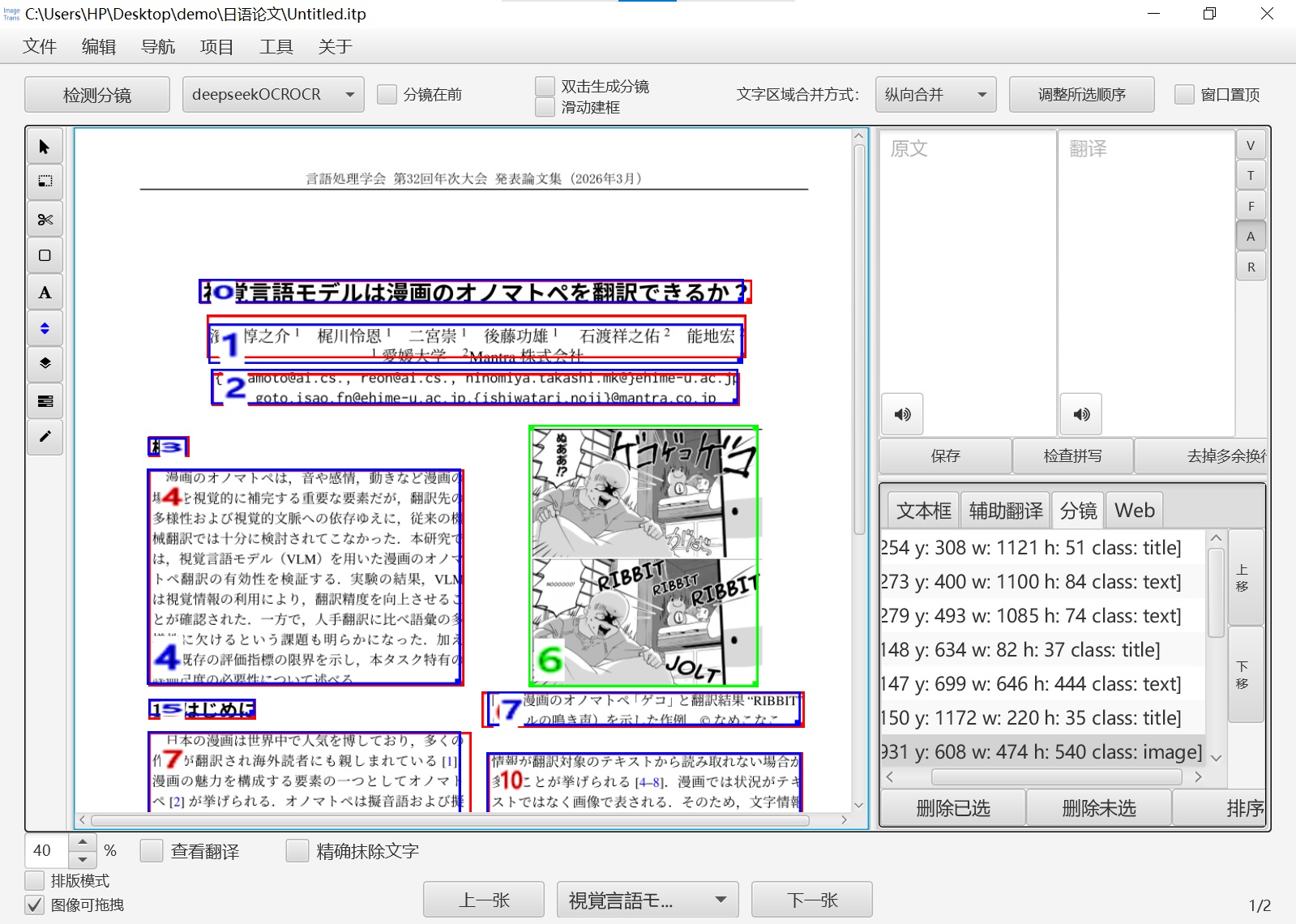
- Sort: Sorts text areas according to panel order to ensure correct reading order
- Translate: Uses engines like Deepseek for translation
Below is the interface after executing the custom workflow, with the toolbar switched to sorting mode:
-
Click “Translated” in the lower-left corner to see the translated version of the PDF paper pages.
-
Go to Menu - File - Export - Markdown to export the result as a Markdown file, making it easy to read on a phone or to feed to AI for analysis. Since Markdown, unlike PDF, does not have positional information for text, correct text ordering is critical during export. With Deepseek-OCR layout analysis, the reading order is generally correct. If there are errors, they can also be corrected in ImageTrans.
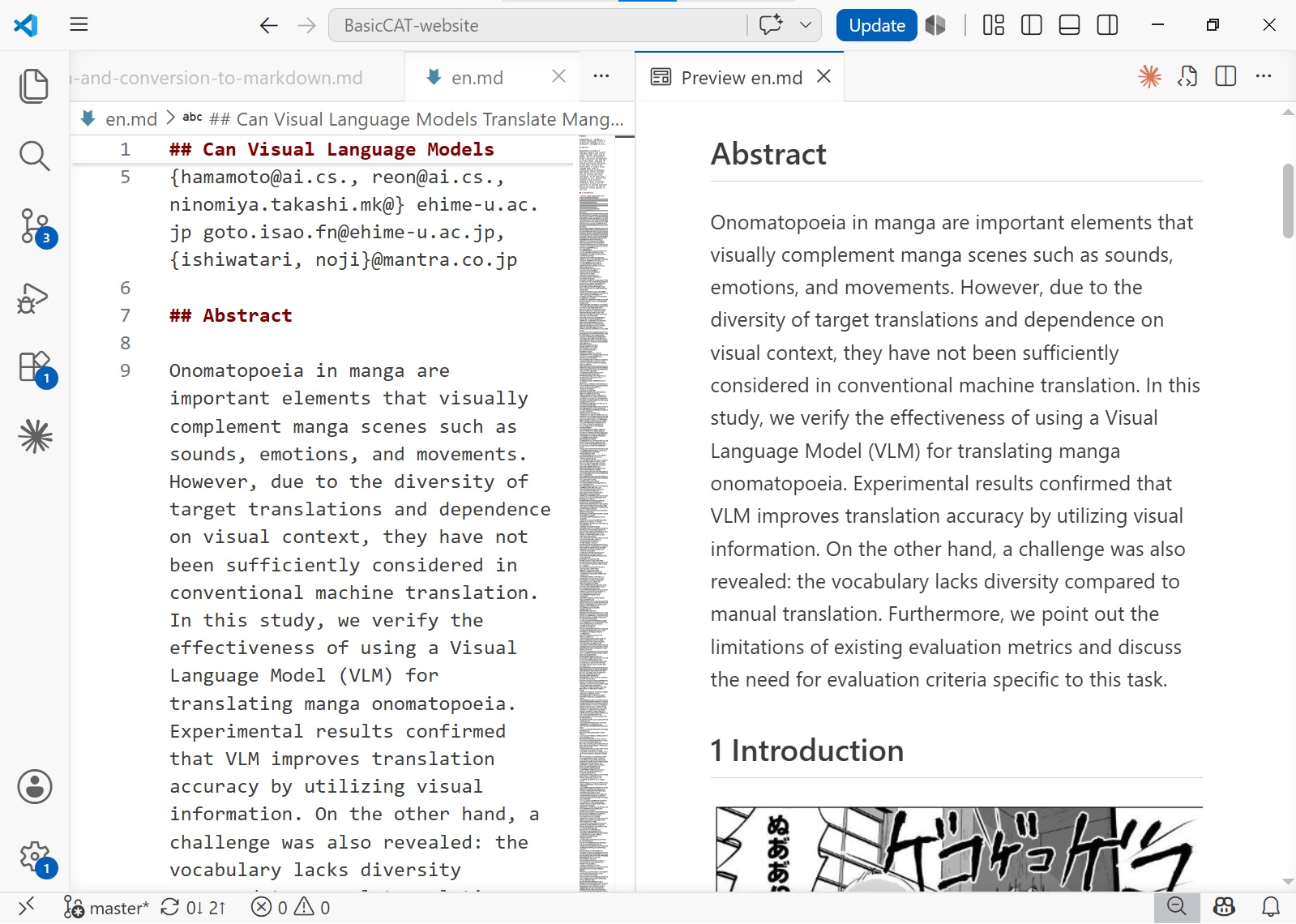
In addition to exporting as Markdown, export to PDF, HTML, and other formats is also supported.
Setup
To use DeepSeek-OCR, you need to fill in the API key of Siliconflow in preferences: https://cloud.siliconflow.cn/models?target=deepseek-ai/DeepSeek-OCR
You can also run DeepSeek-OCR locally.
In addition to DeepSeek-OCR, other large models such as GLM and MinerU can also be used for layout analysis.
© 2026 BasicCAT ― Powered by Jekyll and Textlog theme